
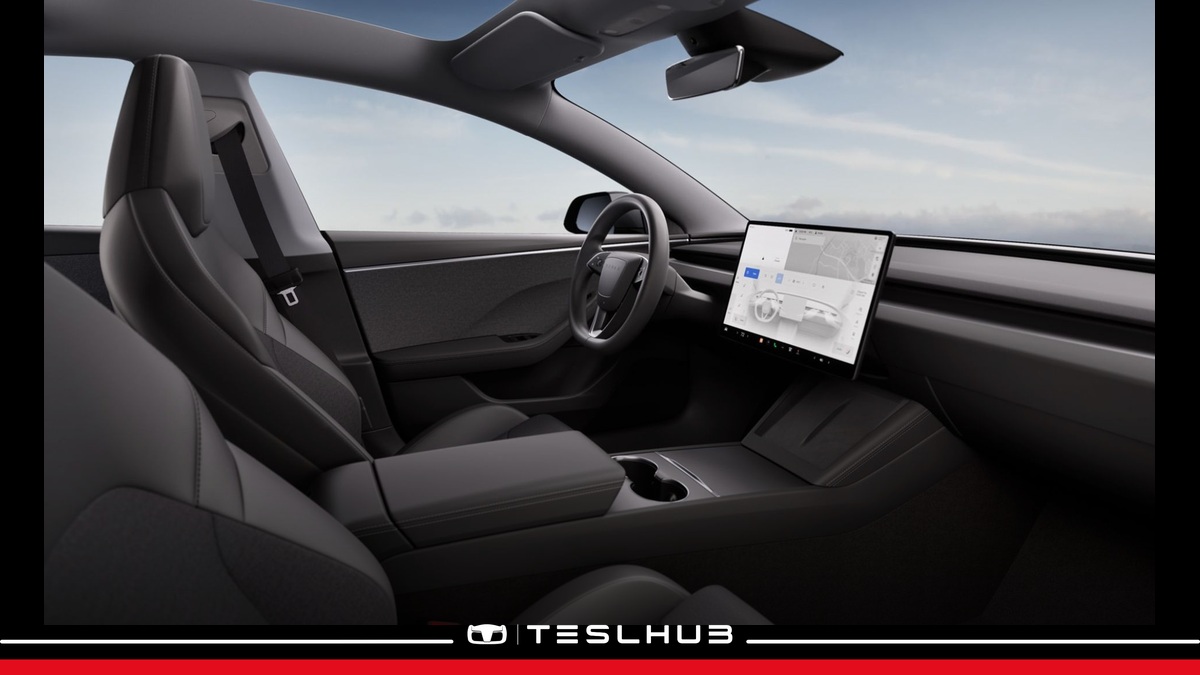
Tesla Wi-Fi connects your car to your home network or phone hotspot. If the connection will not start, distinguishing a signal problem from an incorrect password helps avoid random attempts. This guide brings together five checks to set up the connection and work out what to verify next.
The guidance is based on Tesla Italy support and the Italian manual for the 2025+ Model Y, consulted on 25 October 2026. Set up the connection while parked and compare the menu labels with your own car: wording may differ by software version and model.
1. Tesla Wi-Fi: choose the right network
Open Controls > Wi-Fi, select the network and enter its password if prompted. Tesla support explains that the car reconnects automatically when it returns within range of a known network. Check the network name and password before suspecting a fault.
Tesla recommends keeping the vehicle connected whenever possible, providing a reliable connection for software and map updates. However, having a network configured does not mean an update is already available for your car: see our Tesla software update guide for that topic.
2. Connect your phone’s hotspot
Enable the hotspot on your phone, then select it in the car’s Wi-Fi list like any other network. To keep it connected when shifting into Drive or Reverse, the Italian support page uses the label “Resta connesso durante la guida” (“Remain connected while driving”); the Italian manual uses “Rimanere connessi in Drive” (“Remain connected in Drive”).
A hotspot uses your phone’s data plan: check charges and allowances with your provider. The manual does not describe it as a free or unrestricted connection. Do not configure your phone while driving.
3. Check that the signal reaches the car
Check the bars on the Wi-Fi icon. The manual suggests moving the access point closer if the signal is weak. The support page also proposes a simple test: connect another device to the same network to see whether it works.
Record the results of those two checks separately. “The phone can browse the internet” and “the car can see the network” are different observations: reporting both makes any support request clearer.
4. Retry the connection, one check at a time
If the network, password and coverage are correct, Tesla suggests turning the car’s Wi-Fi off and on, then trying again. The Model Y manual also provides Wi-Fi > Diagnostics. Other options include forgetting the network and reconnecting, or trying a different network.
Avoid changing every setting at once: comparing one attempt at a time helps explain which check made a difference. If the problem persists, Tesla support advises booking a service appointment.
5. Recognise incompatible networks
The manual warns that Model Y does not support captive networks: these require a custom web portal to sign in or accept terms. Seeing a network name in the list therefore does not, on its own, establish compatibility.
This procedure concerns the car’s internet connection. For unlocking and starting the vehicle with a smartphone, see our Phone Key guide.
A practical example of describing the problem
Imagine two situations: in the first, the car does not list the garage network; in the second, the network appears but the connection fails after the password is entered. These are different observations. Your Tesla Wi-Fi notes can include the network name, the car’s location, visible signal bars and the result of testing another device, without sharing the password.
For a Tesla Wi-Fi support request, it is also useful to say whether the phone hotspot works and what message appears on the display. This list does not diagnose a fault by itself: it provides a clear account of the attempts already made, avoiding the need to start from the first test each time.
Verified sources: Tesla Italy, Connecting to Wi-Fi and the Model Y manual, Wi-Fi.
Continue with our guides and tutorials and find Teslhub’s official channels. Archive photograph: Courtesy of Tesla, Inc. Teslhub cover.
Alessandro Marmaglio — Teslhub




Let’s discuss it
Experiences, questions and perspectives from the Teslhub community.
Please keep the discussion respectful. Members’ comments are moderated before publication.
Start the conversation. Leave the first comment.