

Tesla Phone Key can unlock the car and allow driving, but connecting the phone as a key is separate from pairing it for music and calls. An audio problem should therefore not automatically be treated as a key fault, or vice versa.
This guide concerns Model Y and Italian documentation checked on 22 October 2026. For Model 3, earlier generations and different phones, consult the specific instructions. Key card reader locations can vary.
Tesla Phone Key: before you begin
Install the Tesla app, sign in to your account and select the correct vehicle. Tesla’s key management documentation specifies Bluetooth enabled both on the phone and for the app, location permission and Mobile Access enabled in the vehicle. Check the actual settings on your smartphone’s operating system, distinguishing an app’s permissions from the phone’s general settings.
Setup near the car
Inside or near the Model Y, open the app and choose Set Up Phone Key, from the main screen or the Security section. Complete the app and touchscreen prompts. Starting the procedure alone does not confirm pairing is complete: check the outcome before relying on the phone as your only key.
An authenticated Tesla Phone Key communicates through Bluetooth even without Internet access. The manual distinguishes this use from Bluetooth connections for hands-free calling and media.
After setup, take a moment to distinguish three situations: the app is signed in to your account, the phone is paired for calls, and the device is recognised as a key. These are different conditions. Seeing the vehicle in the app or playing music through the speakers does not, by itself, demonstrate that Phone Key is configured. Keep your key card with you during the initial check.
If the phone is not detected
Start with Tesla’s simple checks: sufficient battery charge, airplane mode off, Bluetooth on and an up-to-date app. Check that you are still signed in and that the app can run in the background. Restart the phone if necessary.
Pause before deleting a pairing: Tesla requires a working key card to be available. For Phone Key BLE problems, deletion and setup again should be carried out inside the vehicle with a working spare key. It is not the first step to attempt when outside the car without alternatives.
To identify where a Tesla Phone Key problem lies, note what happens: does the app fail to open, not show the vehicle, or does the car fail to recognise the phone as you approach? This distinction avoids deleting a working pairing because of a different issue. If the fault continues after the checks, tell service your phone model, app version and observed behaviour, without posting credentials or account details in groups.
The key card remains important
The card allows access and driving when the phone is discharged or unavailable. Follow the illustration in your version’s manual to locate the reader: not all consoles are the same. The card does not provide the same walk-away locking as the phone.
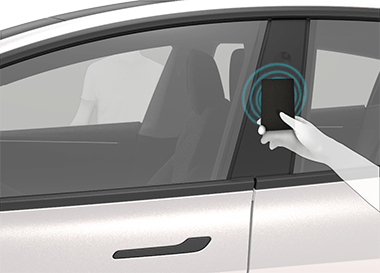
Do not leave a paired phone inside the cabin with Bluetooth enabled: the car may detect it and allow someone outside to open it. Do not treat pressing the lock icon in the app as sufficient proof that a key left inside has been excluded.
Before a journey, check that you genuinely have a key available if your phone becomes unusable. The manual notes that being able to continue a drive already underway is not the same as being able to restart after stopping without a key. The spare is there to handle precisely this situation.
Tesla sources: Keys, Key management and Bluetooth troubleshooting.
Find more explanations in Guides and Tutorials. Visit Teslhub’s channels to join the community discussion.
The Teslhub team




Let’s discuss it
Experiences, questions and perspectives from the Teslhub community.
Please keep the discussion respectful. Members’ comments are moderated before publication.
Start the conversation. Leave the first comment.