

Tesla software updates call for a few simple checks. An update notification does not mean the car is already installing the software. Understanding which stage it has reached is the first step towards planning downtime and interpreting the screen correctly.
Sources checked: 22 October 2026. General guidance comes from Tesla Italy support; the specific features mentioned here refer to the current Model Y manual. For other configurations, check your vehicle’s manual.
Where to check for Tesla software updates
Open Controls > Software. When Tesla makes an update available for your car, a notification also appears in the app. Keep the vehicle connected to stable Wi-Fi for the download. A nearby car having already received a different version does not indicate a fault: rollout does not reach everyone at once.
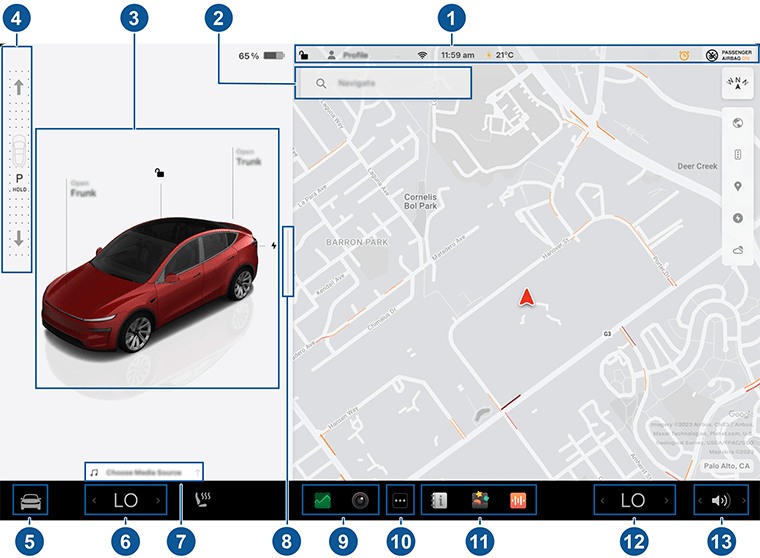
Download and installation are separate stages
You can drive during the download, although losing Wi-Fi may pause it. Installation, however, requires the car to be parked: you cannot drive, and charging is interrupted until installation finishes. Choose a time when you do not need the car.
Do not interpret a download percentage as a precise forecast for the entire process. Before starting installation, read what the vehicle displays; once it begins, it cannot be cancelled. Owners cannot independently roll back to an earlier version.
In practice, if you need to leave soon and the download is still running, do not confuse that stage with an installation already underway. If the installation screen appears, arrange your travel without relying on the car until completion is confirmed. Timing can vary: support documentation warns that some updates may take several hours.
The difference between Standard and Advanced
The Tesla update preference is under Controls > Software. “Advanced” concerns updates made available for that configuration and region: it does not enrol you in the Early Access Program or guarantee the same date as another owner. Tesla does not distribute individual versions on request.
Overnight installation: check the conditions
The current Model Y manual describes automatic installation at 2:00 am, if the relevant option is enabled under Controls > Software, when the car is parked at its Home location and has more than 10% charge. The app notifies you of the schedule. Do not apply these requirements to a different generation without checking its manual.
The same manual notes incompatibility with certain climate modes, including Dog Mode and Camp Mode. A missing menu option or a schedule that has not run therefore calls for checking the context, rather than random attempts.
Before leaving the car overnight, check where it is parked, its charge level and any app notification. If you plan to leave very early, consider the update schedule alongside charging: charging pauses during installation and resumes afterwards. Do not assume the entire parked period has been used to charge the battery.
If something does not seem right
Note the version, stage and message displayed. Afterwards, open Controls > Software > Release Notes: these explain the changes actually received. If the update keeps failing, follow the official support procedure rather than improvising interventions while installation is underway.
For Tesla updates, the most useful comparison is between your own car’s message and its release notes, rather than screenshots from different cars. Hardware, market and configuration can affect the features. After installation, spend a few minutes reading the changes before using an altered control: a newer version number does not mean every feature shown online is also available on your car.
Sources: Tesla Italy support and the Model Y manual.
Find more in Guides and tutorials. Follow us and join the community through Teslhub’s channels.
Team Teslhub




Let’s discuss it
Experiences, questions and perspectives from the Teslhub community.
Please keep the discussion respectful. Members’ comments are moderated before publication.
Start the conversation. Leave the first comment.