
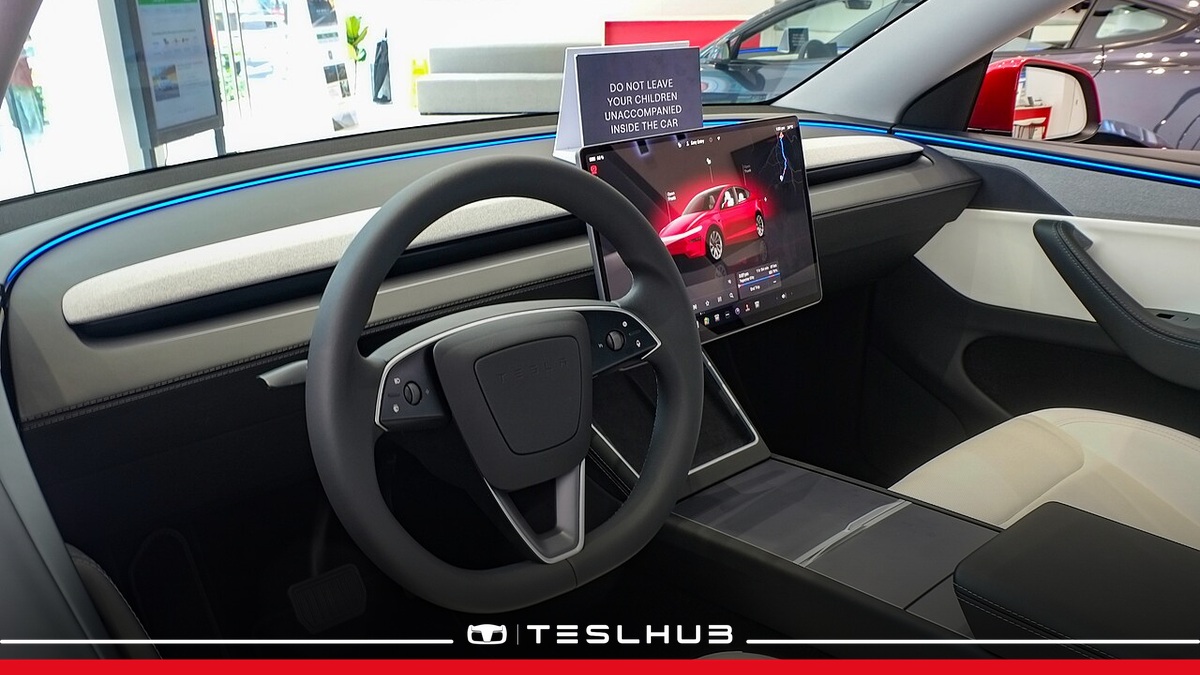
Tesla Bluetooth connects your phone for calls and audio. Being able to unlock the car with your smartphone does not mean this pairing is complete too. Here is how to set up the connection and distinguish an audio problem from a Phone Key problem.
These instructions cover the 2025+ Model Y. Set up the connection while parked and compare the menu labels with those on your vehicle.
1. Tesla Bluetooth: prepare to pair
Sit in the car with the touchscreen awake, unlock your phone and enable Bluetooth. On the touchscreen, open Controls > Bluetooth, wait for your device to appear and select Connect. Some phones need to remain on their Bluetooth settings screen during pairing.
Before you begin, identify your phone’s device name. If several people are in the car, this helps avoid selecting the wrong phone. A name appearing in the list does not, by itself, confirm successful pairing.
2. Compare the numbers on both screens
Check that the number on the phone matches the one on the touchscreen, then confirm pairing on the phone. Read both screens before confirming: you need to be certain which device you are pairing.
3. Choose what to synchronise
Your phone may request access to your calendar, contacts and media. Manage preferences under Controls > Bluetooth > Paired Devices by expanding the menu beside the device name. Contact synchronisation may also require permission on the phone.
An audio connection and a visible contacts list are separate results. If calls work but you cannot find a contact, check synchronisation permissions rather than assuming the entire pairing process has failed.
4. Tesla Bluetooth: check which phone is active
Model Y gives preference to the Priority Device. If none is set, it looks for the last phone used within range. To change phones, open the paired devices list, select the phone you want and press Connect.
In a shared car, check which device is connected before repeating setup. The Bluetooth symbol beside a phone in settings indicates an active connection.
5. Keep hands-free audio separate from Phone Key
Audio pairing is separate from the key. Disconnect keeps the pairing; Forget Device requires you to pair again. Tesla warns against deleting Phone Key without a working key card nearby.
When troubleshooting Tesla Bluetooth, note whether the device itself, audio or contacts are missing. Check that the phone is charged, Bluetooth is on and the car is selected as the audio output. For unlocking and starting the vehicle, see our Phone Key guide instead.



Let’s discuss it
Experiences, questions and perspectives from the Teslhub community.
Please keep the discussion respectful. Members’ comments are moderated before publication.
Start the conversation. Leave the first comment.